
Nov 12th 2026 — Flying Vape
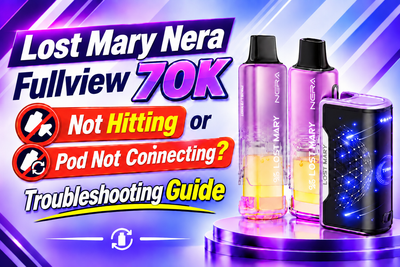
The Lost Mary Nera Fullview 70K is designed to keep things simple: connect a pod, inhale, and the draw-activated system produces vapor. But like any rechargeable pod device, you can occasionally run into issues such as a pod that isn't connecting, weak vapor, a display that isn't responding, or a battery that won't charge.
The good news is that many problems have straightforward causes.
Because the Nera Fullview uses a rechargeable battery base and magnetic replacement pods, troubleshooting it is slightly different from troubleshooting a sealed disposable. You don't need to re-prime the pods, and there is no traditional fire button to troubleshoot.
For a complete overview of the device's features, specifications, and dual-pod design, read our Lost Mary Nera Fullview 70K review.
Here's how to identify and fix the most common problems.
Pod Not Connecting to the Battery Base — Cause and Fix
A pod that doesn't connect properly is one of the first things to check if your Nera Fullview isn't producing vapor.
Possible causes
The most common reasons include:
- The pod isn't seated correctly.
- E-liquid, dust, lint or debris is interfering with the magnetic contacts.
- The pod or battery contacts are dirty.
- The pod has been damaged.
- The battery base isn't detecting the pod correctly.
The Nera Fullview uses a magnetic connection, so the pod needs clean contact with the battery base.
If you're unfamiliar with how the magnetic connection works or how to install replacement pods, read our guide on how the Lost Mary Nera Fullview 70K dual-pod system works.
Step-by-step fix
- Remove the pod.
Take the pod out of the battery base carefully.
- Inspect the connection points.
Look at the bottom of the pod and the corresponding contact area on the battery base. Check for dust, lint, moisture or visible e-liquid.
- Clean the contacts.
If you see residue, gently wipe the contact areas with a clean, dry cotton swab or soft cloth.
Don't pour liquid or cleaning solution into the battery base.
- Check the pod itself.
Look for cracks, damage or anything unusual around the connection area. If the pod is physically damaged, replacing it is safer than repeatedly trying to force it into place.
- Reconnect the pod.
Place the pod back into the battery base and allow the magnetic connection to seat naturally. Don't force or twist it aggressively.
- Try a draw.
Once the pod is seated correctly, inhale normally through the mouthpiece.
If the device recognizes the pod but still produces no vapor, move on to the next troubleshooting section.
Prevention
Keeping the pod connection clean is one of the easiest ways to avoid connection problems. Before installing a replacement pod, check that both the pod contacts and battery connection area are clean and dry.
Avoid carrying the device loose in a pocket or bag with lint, dust or other debris that can collect around the connection.
No Vapor Despite a Connected Pod — Cause and Fix
If the pod appears connected but nothing happens when you inhale, the issue may be related to activation, battery level or the pod itself.
Possible causes
- The battery is too low.
- The pod isn't making complete contact.
- The draw sensor isn't detecting the inhale.
- The pod is empty or has reached the end of its usable life.
- The pod or battery base has developed a fault.
Step-by-step fix
- Check the battery display.
Look at the Fullview screen and check the battery percentage. If the battery is low, charge the device using its USB-C connection.
- Remove and reconnect the pod.
Even if it looks connected, remove it and check the contacts before reconnecting it.
- Take a normal draw.
The Nera Fullview is draw-activated. You don't need to press a fire button while inhaling.
- Check the e-liquid level.
The Fullview design allows you to monitor the pod's e-liquid. If the pod is empty or nearly finished, replace it with a fresh compatible pod.
- Try another compatible pod if available.
If you have a second Nera Fullview pod, connecting it can help determine whether the problem is with the original pod or the battery base.
Prevention
Don't continue using a pod after it's clearly empty. Keep the connection points clean and avoid dropping the battery base or pod, as physical damage can affect their connection.
And importantly, don't try to re-prime the Nera Fullview pods. They're designed as prefilled replacement pods and do not require a manual priming step before use.
Weak Vapor in Normal vs Turbo Mode — What's Normal?
Not every difference in vapor output means something is wrong.
The Nera Fullview has Normal Mode and Turbo Mode, and the output can feel different between them.
Possible causes
If the vapor feels weaker than expected, you may simply be using Normal Mode. Other possibilities include a low battery, an aging pod, or normal variation caused by draw length.
Step-by-step fix
- Check the active mode.
The Fullview screen shows the current mode. Make sure you know whether the device is operating in Normal or Turbo.
- Try Turbo briefly.
If you're in Normal Mode and want stronger output, switch to Turbo using the physical mode button.
- Check the battery level.
A low battery can affect performance. Recharge it if necessary.
- Check the pod's e-liquid level.
If the pod is close to empty, reduced performance can indicate that it's time for a replacement.
Remember that Turbo Mode uses more e-liquid per puff than Normal Mode, so consistent Turbo use can shorten pod life.
Prevention
Choose Normal Mode if you want to conserve e-liquid and use Turbo when you specifically want increased output.
Fullview Display Not Responding — Cause and Fix
The curved Fullview display provides several useful readings at once, including battery percentage, e-liquid level, active mode and puff count.
If the screen doesn't appear to respond, start with the basics.
Possible causes
- The battery is completely depleted.
- The device isn't activating because the pod isn't properly connected.
- The screen or battery base has experienced a fault.
- The device needs to be reconnected or charged.
Step-by-step fix
- Check the battery.
Connect the device to USB-C charging and allow it to charge.
- Check the pod connection.
Remove the pod and inspect the contacts for dirt or moisture before reconnecting it.
- Try a normal draw.
Because the device is draw-activated, there is no fire button that needs to be pressed.
- Check whether the display updates.
If the screen remains completely unresponsive after charging and reconnecting a compatible pod, the battery base may require further inspection or replacement.
Prevention
Keep the battery base dry and protect it from drops or impact. Don't attempt to open the battery housing or repair internal electronics yourself.
Device Not Charging — Cause and Fix
If your Nera Fullview isn't charging, the problem may be the charging connection, cable or battery.
Possible causes
- The USB-C cable isn't connected properly.
- The charging port has debris.
- The power source or cable isn't functioning correctly.
- The battery has developed a fault.
Step-by-step fix
- Check the cable.
Make sure the USB-C connection is fully inserted.
- Try another compatible charging setup.
If the cable or power source is the problem, switching to a known-working option may resolve it.
- Inspect the port.
Look for visible lint or debris. Don't insert sharp objects into the charging port.
- Check the display.
A charging indicator or battery percentage change can help confirm that the device is receiving power.
- Stop if the device becomes unusually hot or damaged.
Don't continue charging a battery that is visibly damaged or behaving abnormally.
Prevention
Keep the USB-C port clean and dry, avoid pulling the cable sideways, and don't leave a damaged device connected to power.
When to Replace the Pod vs Battery Base
Knowing which component is causing the problem can save you from replacing the wrong part.
Replace the pod if:
- It's empty.
- It's visibly damaged.
- A fresh pod works normally on the same battery base.
- The problem follows the original pod.
Consider the battery base as the problem if:
- Multiple compatible pods fail to connect.
- The device won't charge despite checking the cable and port.
- The display remains unresponsive after charging.
- The battery base shows signs of physical damage.
Testing with another compatible pod is particularly useful because it can help separate a pod problem from a battery-base problem.
A Few Things You Shouldn't Do
Troubleshooting should never involve forcing components or attempting unsafe repairs.
Avoid:
- Forcing a pod into the magnetic connection
- Using damaged pods
- Pouring liquid into the battery base
- Opening the battery housing
- Using sharp objects to clean the charging port
- Continuing to charge a visibly damaged battery
- Attempting to refill prefilled pods
- Trying to re-prime pods that are designed to be ready for use
If basic troubleshooting doesn't resolve the issue, replacing the affected component or contacting the retailer for support is the better next step.
Final Thoughts
Most Lost Mary Nera Fullview 70K not working problems can be narrowed down to a few areas: the magnetic pod connection, battery charge, pod condition or activation.
Start with the simplest checks. Remove and reconnect the pod, inspect and clean the contacts, check the battery percentage, and make sure you're inhaling normally because the Nera Fullview is draw-activated.
You shouldn't need to re-prime the prefilled pods.
If a replacement compatible pod works while the original doesn't, the pod is likely the issue. If multiple pods fail and the device also has charging or display problems, the battery base may need attention.
Still having pod-related issues? If your current pod is empty or damaged, check the Lost Mary Nera Fullview 70K Replacement Pod Pack for compatible replacement pods.