
Oct 21st 2026 — Flying Vape
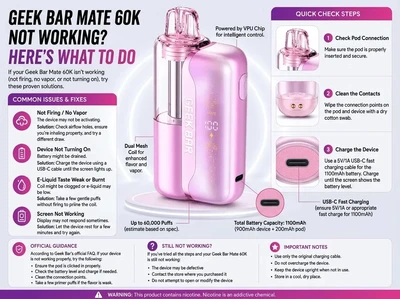
The Geek Bar Mate 60K is designed to provide a reliable vaping experience with features like a modular pod system, magnetic pod connection, VPU (Vaping Processing Unit), and dual batteries. However, like any electronic device, you may occasionally encounter issues such as no vapor, charging problems, or an unresponsive display.
The good news is that many of these problems have simple solutions and don't necessarily mean your device is faulty.
For the full breakdown of specs, features, and overall value, see our complete Geek Bar Mate 60K review.
In this troubleshooting guide, we'll cover the most common Geek Bar Mate 60K not working issues, explain what causes them, provide step-by-step fixes, and share practical tips to help prevent the same problems from happening again.
Mate 60K Producing No Vapor — Cause and Fix
One of the most common complaints is pressing the device but getting no vapor.
Possible Causes
Several factors can prevent the device from producing vapor, including:
-
The battery is completely discharged.
-
The pod isn't fully connected.
-
Dirty magnetic contacts.
-
The pod has reached the end of its lifespan.
-
The airflow is blocked.
-
An internal device fault.
How to Fix It
Try these steps in order:
-
Check the battery level on the display.
-
Recharge the device if necessary.
-
Remove the pod and reconnect it firmly.
-
Inspect the magnetic contacts for dust or e-liquid residue.
-
Wipe the contacts gently with a dry, lint-free cloth.
-
Make sure the airflow openings aren't blocked.
-
If the pod is empty, replace it with a new one.
If the device still doesn't produce vapor after trying these steps, discontinue use and contact the retailer for further assistance.
How to Prevent It
You can reduce the chances of this issue by:
-
Charging the device before the battery becomes completely empty.
-
Keeping the pod connection clean.
-
Storing the device in a clean, dry place.
-
Replacing pods when they reach the end of their usable life.
Pod Not Connecting to the Device — Fix It
The Geek Bar Mate 60K uses a magnetic pod system designed to make pod replacement quick and easy.
If the pod isn't connecting properly, the device may not recognize it.
Possible Causes
Common reasons include:
-
Dust or debris on the magnetic contacts.
-
E-liquid residue between the pod and device.
-
Pod not fully seated.
-
Damaged pod.
-
Foreign objects preventing a proper connection.
How to Fix It
Follow these steps:
-
Remove the pod from the device.
-
Check both magnetic connection points.
-
Carefully clean the contacts using a soft, dry cloth.
-
Reinsert the pod until it sits securely.
-
Confirm that the display responds normally.
If another compatible pod is available, test it to determine whether the issue is with the pod or the device.
How to Prevent It
-
Keep the connection area clean.
-
Avoid dropping the device.
-
Store replacement pods in their original packaging until use.
-
Don't force the pod into position.
Weak Vapor in Regular Mode vs Pulse Mode — What's Normal?
Some users notice that vapor production changes after switching between modes.
In many cases, this is completely normal.
Possible Causes
-
Regular Mode naturally produces smoother vapor.
-
Pulse Mode increases power output for denser vapor.
-
Low battery.
-
Nearly empty pod.
-
Airflow adjusted too tightly.
How to Fix It
If vapor feels weaker than expected:
-
Check which vaping mode is selected.
-
Increase the airflow if desired.
-
Recharge the battery.
-
Replace the pod if it's nearly empty.
-
Switch between Regular Mode and Pulse Mode to compare performance.
Remember that Regular Mode is designed for efficiency, while Pulse Mode focuses on stronger vapor production.
How to Prevent It
-
Keep the battery charged.
-
Replace pods before performance declines significantly.
-
Choose the vaping mode that best matches your preferences.
Galaxy UI Display Not Responding — Fix It
The Dynamic Galaxy display provides important information such as battery level, puff count, and selected vaping mode.
If the screen doesn't respond, don't panic.
Possible Causes
-
Battery completely discharged.
-
Temporary software issue.
-
Pod not connected correctly.
-
Charging interruption.
How to Fix It
Try the following:
-
Connect the device to a USB-C charger.
-
Wait several minutes.
-
Disconnect and reconnect the pod.
-
Check whether the display activates during charging.
If the display remains blank after charging and reconnecting the pod, discontinue use and contact the retailer.
How to Prevent It
-
Keep the battery adequately charged.
-
Avoid exposing the device to excessive moisture.
-
Protect the display from hard impacts.
Device Not Charging — Fix It
Charging problems are often caused by accessories rather than the device itself.
Possible Causes
-
Damaged USB-C cable.
-
Faulty wall adapter.
-
Dirty charging port.
-
Loose connection.
-
Damaged charging equipment.
How to Fix It
Work through these checks one at a time:
-
Try another USB-C cable.
-
Use a different wall adapter.
-
Inspect the charging port for dust or lint.
-
Gently remove any visible debris.
-
Confirm the charging cable is inserted completely.
If the battery still doesn't charge after testing different accessories, the device may require professional support or replacement. For a deeper look at the dual-battery system and what "80% in 20 minutes" actually means, see our full Mate 60K charging guide.
How to Prevent It
-
Use high-quality charging cables.
-
Keep the charging port clean.
-
Avoid bending or damaging the charging cable.
-
Disconnect the charger carefully instead of pulling on the cable.
When to Replace the Pod vs the Device
Knowing whether to replace the pod or the entire device can save both time and money.
Replace the Pod If:
-
The e-liquid has run out.
-
Flavor has noticeably declined.
-
Vapor production remains weak despite charging.
-
The pod is damaged or leaking.
-
The device recognizes the pod, but performance has dropped.
Since the Mate 60K uses a modular system, pod replacement is part of normal use.
Shop a replacement Geek Bar Mate 60K Pod when you're ready.
Replace the Device If:
-
The rechargeable battery no longer holds a charge.
-
The device won't power on after charging.
-
The charging port is physically damaged.
-
The magnetic connection is damaged.
-
The display no longer functions after basic troubleshooting.
If your device is still covered by warranty, contact the retailer before attempting any repairs.
General Maintenance Tips
A few simple habits can help keep your Geek Bar Mate 60K performing consistently.
-
Charge the device regularly using a quality USB-C cable.
-
Keep the pod connection and charging port clean.
-
Store the device away from extreme heat, direct sunlight, and moisture.
-
Avoid dropping the device.
-
Replace pods when performance noticeably declines.
-
Check the display regularly for battery level and operating mode.
Routine maintenance helps reduce the chances of connection, charging, and performance issues.
Final Thoughts
Experiencing a problem with your Geek Bar Mate 60K doesn't always mean the device is defective. Most issues—such as no vapor, weak performance, charging problems, or pod connection errors—can often be resolved with a few simple checks and regular maintenance.
The modular design of the Mate 60K makes troubleshooting straightforward. Cleaning the magnetic contacts, keeping the battery charged, replacing worn pods, and using quality charging accessories can all help maintain reliable performance.
If you've worked through the steps in this guide and your device still isn't functioning correctly, it's best to stop using it and contact the retailer for assistance. For more information about the Mate 60K's features, battery system, and vaping modes, explore our Geek Bar Mate 60K Review, Charging Explained, and Regular Mode vs Pulse Mode guides.